Create and dispatch a sales order
The standard flow from quote to dispatch, with batch-aware picking.
- 1
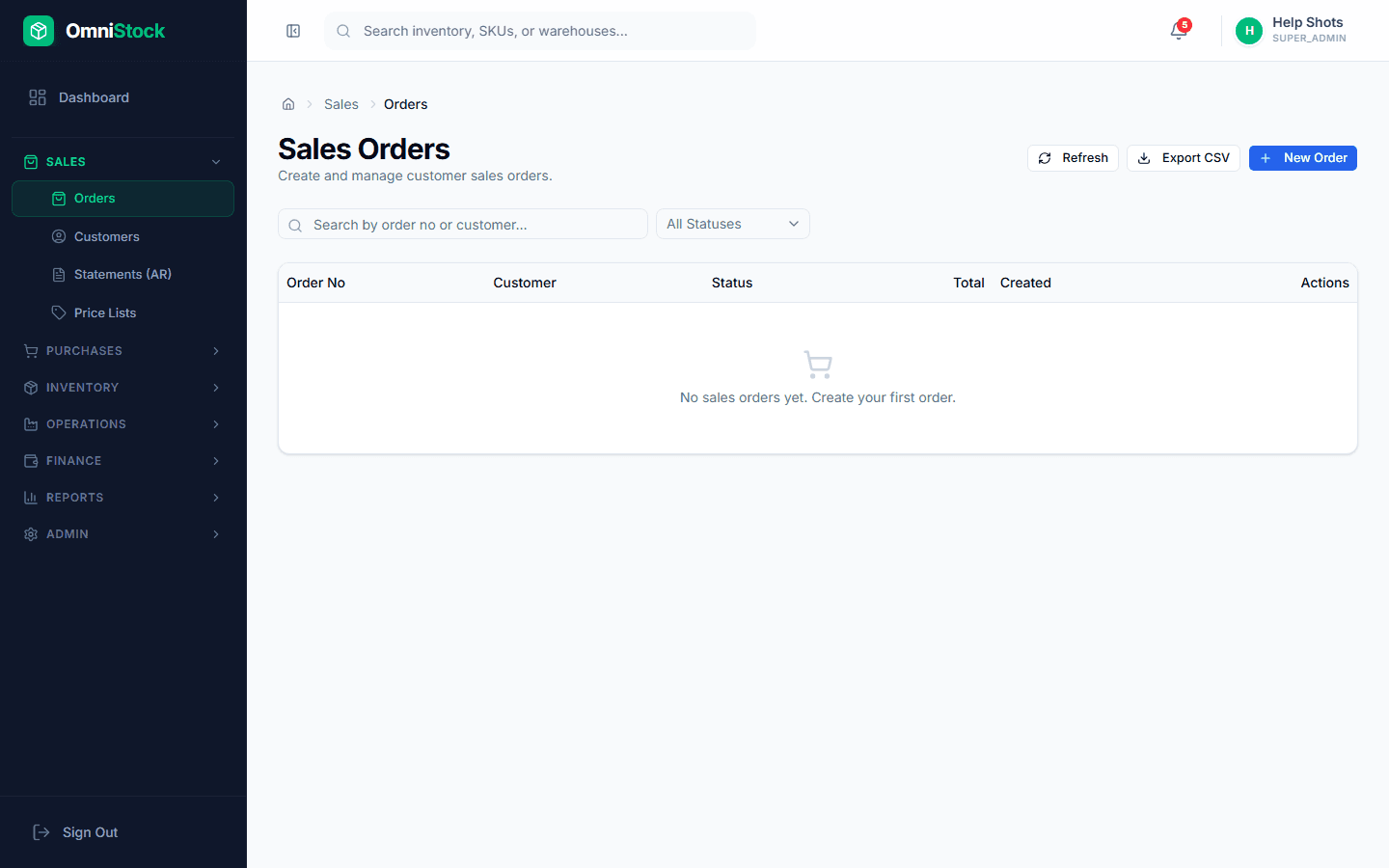
Start a new order
Sales → Orders → New. Pick the customer. If this is a repeat customer, their default price list and payment terms auto-populate.
- 2
Add line items
Use the product search to add SKUs. Quantity, rate, discount and tax are editable per line. Negative stock is blocked unless you've allowed backorders in settings.
- 3
Apply a price list
If the customer has a tier-specific price list, rates pull automatically. You can still override a single line if needed — the override is logged to audit.
- 4
Confirm the order
Confirming moves DRAFT → CONFIRMED and reserves stock. Reserved stock is not available to other orders. You can still edit quantities until you dispatch.
Tip: Need approval? If an approval threshold is configured, the order first goes to APPROVAL_PENDING instead. - 5
Dispatch with FEFO
Click 'Dispatch'. The system picks from the earliest-expiring batches automatically (First Expiry First Out). You can override a pick line if you need to dispatch from a specific batch.
- 6
Share the invoice
Use 'Email invoice' or 'Download PDF'. The invoice number is allocated from the document-sequence table so it never skips or duplicates.